Step-by-step version checks, package verification and a clean test-world workflow. This guide focuses on a repeatable setup process rather than assuming every launcher, modpack or server uses the same files.
Start with the version, not the download
Before moving any file, identify the exact Minecraft version used by your launcher instance. Lost Cities builds are version-specific, and the matching Forge environment matters just as much as the mod file itself.
Check the package type
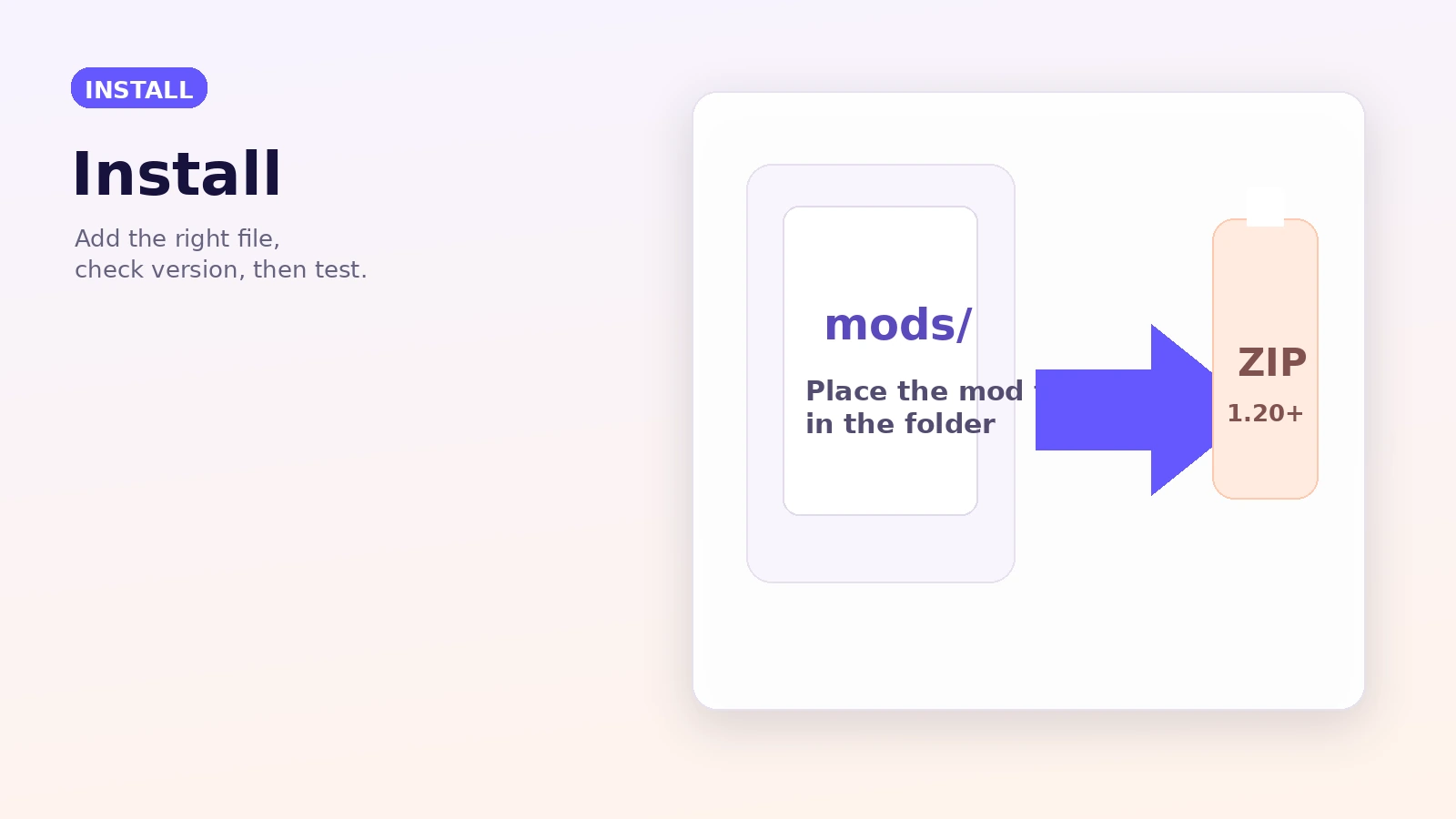
A launcher-ready mod normally uses the package expected by your loader. The download URL supplied on this website points to a GitHub branch ZIP, so inspect its contents instead of assuming the ZIP itself belongs in the mods folder.
Use a clean test instance
Create a small test instance with the minimum required mods. If the game reaches the title screen and a new world generates correctly, add the rest of your modpack in controlled steps.
Back up before world generation changes
World-generation settings can affect only newly created chunks. Keep a backup before changing profiles or upgrading major versions so you can recover from unexpected borders or incompatibilities.